
Pix Hub
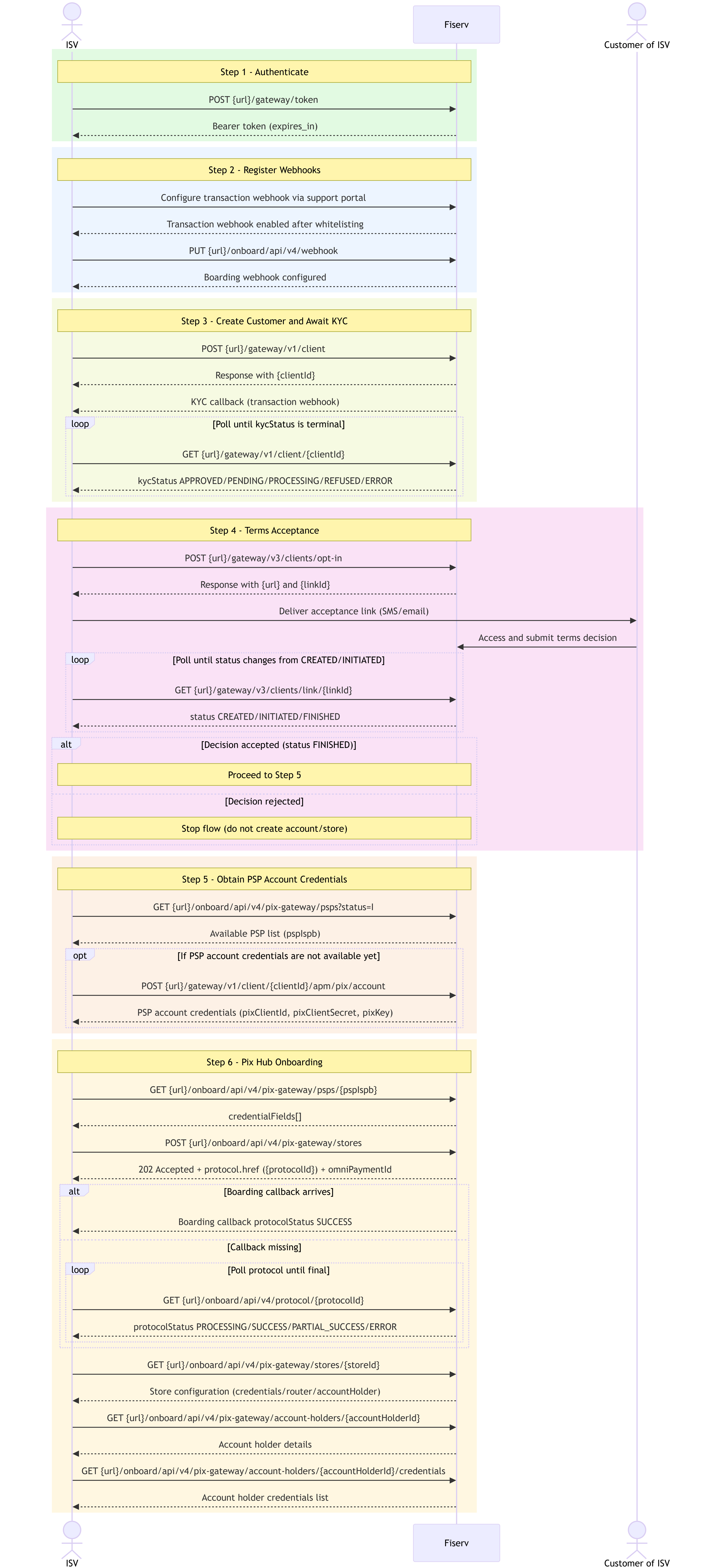
This guide walks through every action you must take — in the exact order — to complete a Pix Hub integration.
This guide covers the Pix Hub path only. If you chose Direct PSP Fiserv, refer to that path's Direct Integration Guide.
Prerequisites
Before you start, confirm you have received the following integrator-level credentials from the Fiserv team:
| Credential | Description |
|---|---|
client_id | Integrator client ID |
client_secret | Integrator client secret |
apikey | API key, required on every request |
secret | HMAC signing key |
These are integrator credentials. They authenticate the integrator with Fiserv and are reused across all Pix accounts and Pix Hub stores you create. Different account-specific credentials will be generated in Step 6.
Keep these in a secrets vault. You will also need to send the CNPJ(s) to be approved to the Fiserv team before testing KYC in the certification environment.
API Base URLs
| Environment | Base URL |
|---|---|
| Production | https://connect.latam.fiservapis.com |
| Certification | https://connect-cert.latam.fiservapis.com |
Every request requires security headers (
apikey,x-timestamp,x-request-id,x-hmac-signature) in addition to theAuthorizationbearer token. See Authentication for the full specification.
Step 1 — Authenticate
Exchange your credentials for a Bearer token:
POST /gateway/token
Tokens expire after the time indicated in the response (expires_in, in seconds). Re-authenticate before each new session or whenever the token is about to expire.
See Authentication for full details.
Step 2 — Register Your Webhooks
Pix Hub requires two separate webhooks, both needing Fiserv team approval before they receive notifications. Register both before making any other call.
2.1 — Transaction Webhook
Handles KYC conclusions and all transactional events (charges, refunds, reversals):
This can only be configured via the support portal.
2.2 — Boarding Webhook
Handles async store provisioning results from the Pix Hub:
PUT /onboard/api/v4/webhook
{
  "url": "https://example.your-application-url.here/service-to-receive-callback",
  "authType": "OAUTH2",
  "authSettings": {
    "authUrl": "https://example.com/auth",
    "clientId": "*****",
    "clientSecret": "*****",
    "grantType": "client_credentials"
  }
}
Request Fields
| Name | Mandatory | Type | Description |
|---|---|---|---|
| url | yes | String | URL to receive notifications |
| authType | yes | String | Authentication type. Allowed: OAuth2, HMAC2, NONE |
| authSettings | no | Object | Authentication Settings |
| authSettings.authUrl | no | String | Authentication URL. Mandatory if authType is OAUTH2 |
| authSettings.clientId | no | String | Client id. Mandatory if authType is OAUTH2 |
| authSettings.clientSecret | no | String | Client Secret. Mandatory if authType is OAUTH2 |
| authSettings.grantType | no | String | Grant type. Mandatory if authType is OAUTH2 |
| authSettings.apiKey | no | String | Api Key. Mandatory if authType is HMAC |
| authSettings.apiSecret | no | String | Api Secret. Mandatory if authType is HMAC |
Important: Both URLs must be submitted to your Fiserv contact for whitelisting. Changes to existing URLs also require prior alignment with the team.
Events delivered to each webhook:
| Event | Webhook | Type |
|---|---|---|
| KYC Conclusion | Transaction | Callback (pushed) |
| Transaction Status | Transaction | Callback (pushed) |
| Boarding Protocol | Boarding | Callback (pushed) |
| Terms Acceptance | (none) | Poll only — never pushed |
Always implement a fallback query strategy for pushed events in case webhook delivery fails.
See Pix Hub API - Webhook callbacks for boarding callback schemas.
Step 3 — Create Customer and Await KYC Approval
KYC validation is asynchronous. You must wait for approval before proceeding to account creation.
3.1 — Create Customer
Submit the customer's company registration data:
POST /gateway/v1/client
Save the clientId returned in the response — it is required in Step 4.
3.2 — Await KYC Callback
After registration, Fiserv runs KYC asynchronously. Your webhook will receive a notification when processing is complete.
3.3 — Confirm KYC Status
Query the customer to confirm the result before proceeding:
GET /gateway/v1/client/{clientId}
| kycStatus | Next action |
|---|---|
| APPROVED | Proceed to Step 4 |
| PENDING / PROCESSING | Wait and poll again |
| REFUSED | Do not proceed; review with Fiserv |
| ERROR | Retry or contact support |
| NOT_FOUND | Wait and poll again. If the status persists, retry or contact support |
See Customer for request/response schemas and KYC status details.
Step 4 — Terms Acceptance
This step is unique to Pix Hub. Unlike KYC, the customer's decision is never pushed — you must actively poll to check it.
4.1 — Generate Terms Acceptance Link
Request a terms acceptance link for the customer:
POST /gateway/v3/clients/opt-in
The response returns a url (the acceptance link) and a id (the link_id). Save link_id — it is needed to poll acceptance status.
4.2 — Deliver the Link to the Customer
Send the acceptance url to the customer via SMS and/or email. The customer accesses the link, reviews the terms, and submits their decision directly to Fiserv.
4.3 — Poll Until Decision
Actively poll until the customer accepts or rejects the terms:
GET /gateway/v3/clients/link/{link_id}
status | Meaning |
|---|---|
CREATED | Link generated but not yet accessed |
INITIATED | Customer accessed the link |
FINISHED | Customer submitted their decision |
Only proceed when status is FINISHED. If the customer rejected, do not continue to account creation.
See Pix Hub API for request/response schemas.
Step 5 — Obtain PSP Account Credentials
This step is generic and optional. If you already hold valid Pix account credentials at one of the PSPs available in the Hub, skip directly to Step 6.
To bind a store to a PSP you need an active Pix account — and its associated credentials — at that PSP. This section explains how to discover available PSPs and where to create an account.
5.1 — List Available PSPs
Retrieve the PSPs available in the Pix Hub:
GET /onboard/api/v4/pix-gateway/psps
Filter by ?status=I to see only integration-ready PSPs. Each entry includes the PSP id (ISPB code), name, and connection URLs. These are the PSPs at which you can create an account and later bind to a store.
Save the id (ISPB code) of the PSP you intend to use — it is required when creating the store in Step 6.
5.2 — Create an Account at Your Chosen PSP
Account creation is handled directly with each PSP, outside of the Pix Hub API. The process and credential format differ per PSP.
For PSP Fiserv, follow Step 4 — Create Pix Account in the PSP Fiserv Integration Guide:
POST /gateway/v1/client/{clientId}/apm/pix/account
This returns account-specific credentials that you will supply when creating the store in Step 6 (e.g., client ID, client secret, Pix key).
For other PSPs returned in Step 5.1, consult that PSP's onboarding documentation to obtain the equivalent account credentials.
Credentials are issued once per account. Store them in a secure vault — they are required for store provisioning in Step 6. If you create accounts at multiple PSPs, each will have its own credential set. You may bind more than one PSP to the same store.
Step 6 — Pix Hub Onboarding (Store Provisioning)
This section is the Pix Hub onboarding phase. Endpoint paths still contain
/pix-gateway, but in this guide they are treated as part of the same Pix Hub flow.
6.1 — Get PSP Credential Fields
Before creating a store, fetch the specific credential fields required for the PSP you chose in Step 5:
GET /onboard/api/v4/pix-gateway/psps/{pspIspb}
This endpoint returns credentialFields[] — the list of dynamic fields that must be populated when creating a credential for that PSP. Because each PSP defines its own required fields, always check this before store creation.
6.2 — Create the Store
Create the Pix Hub store using the PSP account credentials obtained in Step 5. You can configure the store to use credentials from any PSP available in the Hub:
POST /onboard/api/v4/pix-gateway/stores
This request returns HTTP 202 Accepted. The store provisioning completes asynchronously. The response includes a protocol.href HATEOAS link (e.g., /v4/protocol/{protocolId}) — extract the protocolId from this URL if you need to poll the status manually.
Save the omniPaymentId returned — it is the store identifier used in all subsequent transactions.
6.3 — Await Boarding Callback
Your boarding webhook receives notifications as each provisioning event completes. Wait until the callback arrives with protocolStatus: SUCCESS before transacting.
If the callback does not arrive, poll the protocol status directly:
GET /onboard/api/v4/protocol/{protocol-id}
Do not send transactions until provisioning is complete. Attempting to transact before
protocolStatus: SUCCESSwill fail.
See Pix Hub API for store creation schemas and boarding callback details.
6.4 — Verify Store Configuration
After the boarding callback confirms protocolStatus: SUCCESS, query the store to validate its configuration before transacting:
GET /onboard/api/v4/pix-gateway/stores/{storeId}
The response includes:
credentials[]— credential list, each withpspIspb,pixKey,pixClientId,credentialAlias, and adefaultflagrouter— routing configuration (BALANCINGorCONTINGENCY) with the PSPs assigned to this storeaccountHolder— parent account holder reference with a HATEOAS self-link
6.5 — Verify Account Holder
Extract the accountHolderId from accountHolder.link.self.href and query it directly to confirm the account holder was created:
GET /onboard/api/v4/pix-gateway/account-holders/{accountHolderId}
To list all credentials registered under the account holder across stores:
GET /onboard/api/v4/pix-gateway/account-holders/{accountHolderId}/credentials
The
pspIspbfield is the link between PSPs, credentials, and routing throughout these responses. Use it to confirm the store is bound to the expected PSP before going live.
Step 7 — Process Transactions
This is the Pix Hub transactional phase. Transactional operations use the
/apm/pix/v1/path. UseomniPaymentIdas the store identifier in the request body.
7.1 — Create a Charge
POST /apm/pix/v1/charges
Save the tid from the response — it is the Fiserv transaction ID required for queries, cancellation, and refunds.
7.2 — Await Transaction Callback
Your transaction webhook receives a notification for each status change (Pending → Confirmed or Canceled). If the callback does not arrive, query directly:
GET /apm/pix/v1/charges/{tid}
7.3 — Cancel or Refund (optional)
To cancel a pending charge, or to trigger an automatic refund if the charge was already paid:
PUT /apm/pix/v1/charges/{tid}/cancel
To explicitly refund a confirmed charge:
PUT /apm/pix/v1/charges/{tid}/refund
Quick Reference
| # | Action | Endpoint | Async? |
|---|---|---|---|
| 1 | Authenticate | POST /gateway/token | No |
| 2 | Register Webhooks | — | — |
| 2.1 | Register transaction webhook | Support portal configuration | No |
| 2.2 | Register boarding webhook | PUT /onboard/api/v4/webhook | No |
| 3 | Create Customer and Await KYC | — | — |
| 3.1 | Create customer | POST /gateway/v1/client | No |
| 3.2 | Await KYC callback | (transaction webhook) | Yes |
| 3.3 | Confirm KYC approval | GET /gateway/v1/client/{clientId} | No |
| 4 | Terms Acceptance | — | — |
| 4.1 | Generate terms acceptance link | POST /gateway/v3/clients/opt-in | No |
| 4.2 | Deliver link to customer | (SMS / email) | — |
| 4.3 | Poll until customer decides | GET /gateway/v3/clients/link/{link_id} | Poll only |
| 5 | Obtain PSP Account Credentials | — | — |
| 5.1 | List available PSPs (optional) | GET /onboard/api/v4/pix-gateway/psps | No |
| 5.2 | Create account at PSP (optional) | (PSP-specific — see Step 5.2) | — |
| 6 | Pix Hub onboarding (store setup) | — | — |
| 6.1 | Get PSP credential fields | GET /onboard/api/v4/pix-gateway/psps/{pspIspb} | No |
| 6.2 | Create Pix Hub store | POST /onboard/api/v4/pix-gateway/stores | No (202 Accepted) |
| 6.3 | Await boarding callback (SUCCESS) | (boarding webhook) | Yes |
| 6.4 | Verify store configuration | GET /onboard/api/v4/pix-gateway/stores/{storeId} | No |
| 6.5 | Verify account holder | GET /onboard/api/v4/pix-gateway/account-holders/{accountHolderId} | No |
| 7 | Pix Hub transactional | — | — |
| 7.1 | Create charge | POST /apm/pix/v1/charges | No |
| 7.2 | Await transaction callback | (transaction webhook) | Yes |
| 7.3 | Cancel or refund (optional) | PUT /apm/pix/v1/charges/{tid}/cancel | No |
Updated 3 months ago